
.webp)

Are you looking to expand your online business and reach more customers? Adding your products to Amazon Seller Central can help you achieve just that. However, the process of adding your products to Amazon can seem daunting, especially if you're new to the platform. In this blog post, we'll provide a quick guide on how to add products on Amazon Seller Central, including creating a successful product detail page (PDP) and uploading your products via Amazon's product upload feature.
How to Add a Product on Amazon Seller Central
Adding a product on Amazon Seller Central involves a few simple steps:
- Log in to your Amazon Seller Central account
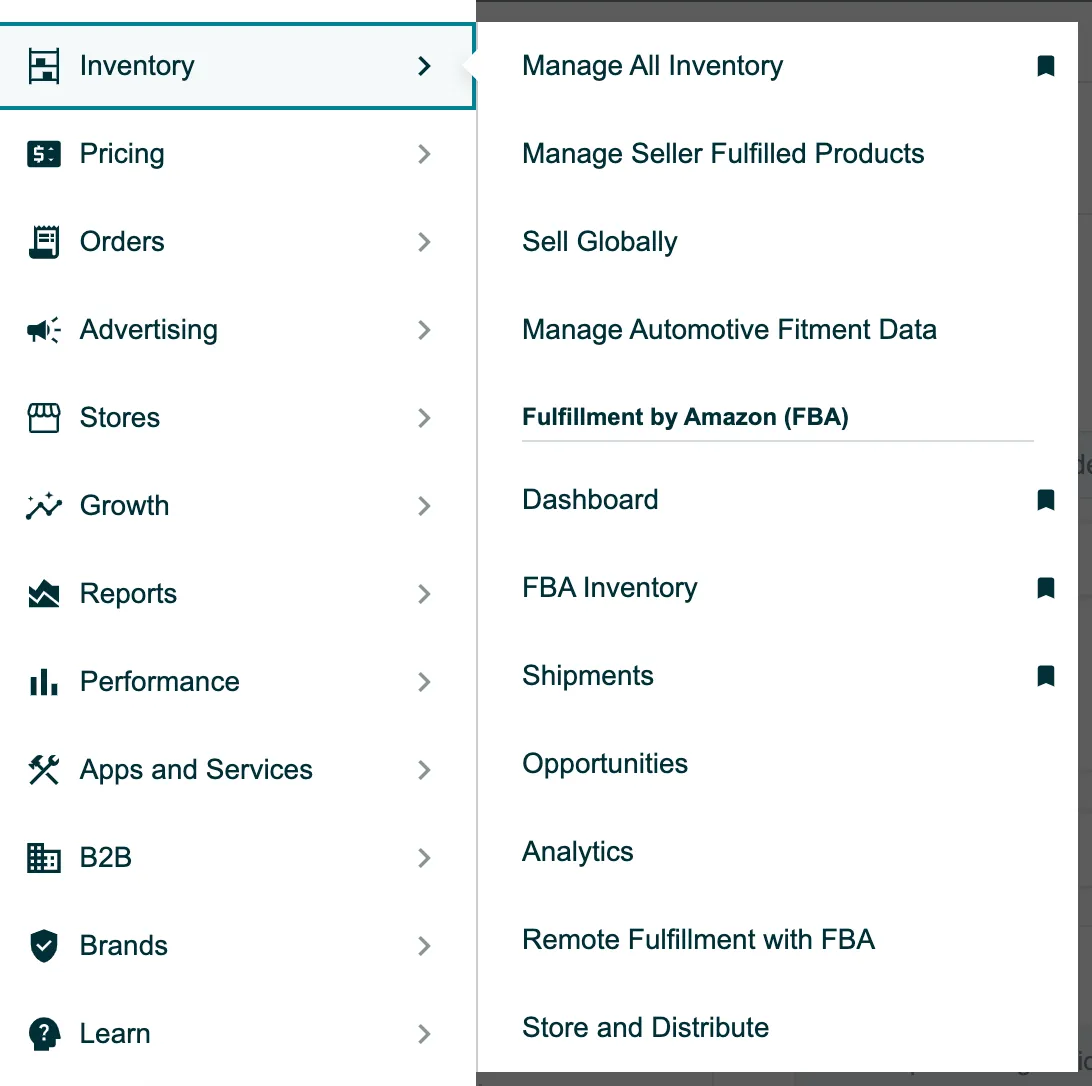
- Click on the "Inventory" tab
- Select "Add a Product"
- Choose the product category and fill in the required information, including product name, brand, description, and images.
- Set your price and shipping details
- Click "Save and finish"
When creating a product listing, it's important to provide accurate and detailed information about your product. This helps customers make an informed decision when purchasing from you. Providing high-quality images that showcase your product can also increase the chances of a sale. Additionally, including keywords in your product description that potential customers may search for can improve your product's visibility on Amazon.

Creating a Successful PDP on Amazon
A product detail page (PDP) is the page on Amazon where your customers can view your product and make a purchase. Creating a successful PDP can increase your chances of making a sale. Here are some tips to create a successful PDP:
- Use high-quality images that showcase your product
- Write a clear and concise product description that highlights its features and benefits
- Provide accurate and detailed product information, including size, dimensions, and weight
- Use keywords that potential customers may search for
- Include customer reviews to build trust and credibility
Using high-quality images on your PDP is essential, as it allows customers to see your product in detail. Make sure your images are clear, well-lit, and showcase all angles of your product. Writing a clear and concise product description is also important, as it helps customers understand what your product is all about. Provide accurate and detailed product information, such as dimensions and weight, as this helps customers determine if your product is suitable for their needs. Including keywords in your product description can also help customers find your product when searching on Amazon.

Adding Products via Upload on Amazon
Amazon's product upload feature allows you to upload your products in bulk, making the process faster and more efficient. Here are the steps to add products via upload on Amazon:
- Log in to your Amazon Seller Central account
- Click on the "Inventory" tab
- Select "Add Products via Upload"
- Download the product template and fill in the required information, including product name, description, and images.
- Save the file and upload it to Amazon
- Review and submit your products for approval
Uploading your products via Amazon's product upload feature can save you time and effort, especially if you have a large inventory. Using the product template provided by Amazon ensures that you include all the required information needed for a successful listing. Reviewing and submitting your products for approval is also important, as it ensures that your listings comply with Amazon's policies and guidelines.
Best Practices for Adding Products on Amazon
To maximize the success of your product listings on Amazon, here are some best practices to keep in mind:
- Research your competitors and price your products competitively
- Offer fast and reliable shipping options
- Provide excellent customer service, including responding to customer questions and concerns in a timely manner
- Encourage customers to leave reviews and respond to them to build trust and credibility
- Use Amazon's advertising tools to promote your products and reach more customers
- Monitor your product listings regularly and make adjustments as needed
Researching your competitors and pricing your products competitively can help you stand out in a crowded marketplace. Offering fast and reliable shipping options can also help you attract and retain customers. Providing excellent customer service, such as responding to customer questions and concerns in a timely manner, can help you build a loyal customer base. Encouraging customers to leave reviews and responding to them can also help build trust and credibility for your brand.
Using Amazon's advertising tools, such as Sponsored Products and Sponsored Brands, can help you promote your products and reach more customers. These advertising tools can be customized to target specific audiences and keywords, increasing the visibility of your products on Amazon.
Lastly, it's important to monitor your product listings regularly and make adjustments as needed. This includes monitoring your pricing, inventory levels, and customer feedback. Making regular updates to your product listings can help you stay competitive and maintain a strong presence on Amazon.

Conclusion
In conclusion, adding your products to Amazon Seller Central can help you expand your business and reach more customers. By following the steps outlined in this guide and implementing best practices, you can create successful product listings and build a thriving business on Amazon. Remember to provide accurate and detailed information about your products, use high-quality images, and offer excellent customer service to build trust and loyalty with your customers.







.svg)
.svg)

